
Construction payroll goes wrong when time data is fixed too late. I’d sum this up in one line: if hours are recorded with the right worker, job, cost code, breaks, overtime, and approval status from the start, payroll becomes a transfer step instead of a cleanup step.
Here’s the short version:
- I need three steps to move field time into payroll: clock-in, supervisor approval, and payroll sync
- Each time record should include:
- worker name or ID
- job number
- cost code
- date
- start and end times
- break time
- regular and overtime hours
- pay rate
- approval status
- The best clock-in setup depends on the site:
- mobile app
- kiosk or tablet
- QR or PIN
- GPS or geofence check
- foreman-entered crew time
- Before payroll, I should review:
- missed punches
- manual edits
- wrong cost codes
- duplicate time
- wrong jobsite
- missing breaks
- overtime over 40 hours
- Then I map approved time to payroll fields and run a final check on:
- total hours
- gross pay
- job-level labor totals
A few numbers show why this matters. Payroll corrections can cost $281 to $291 each. Missing or wrong punches can cost about $78,700 per 1,000 employees per year. On public jobs, records may also need to support Davis-Bacon reporting and forms like WH-347, and some states such as New York require record retention for six years.
This article shows how I’d keep that process clean: record time right at the site, review it before cutoff, and send only approved hours into payroll.
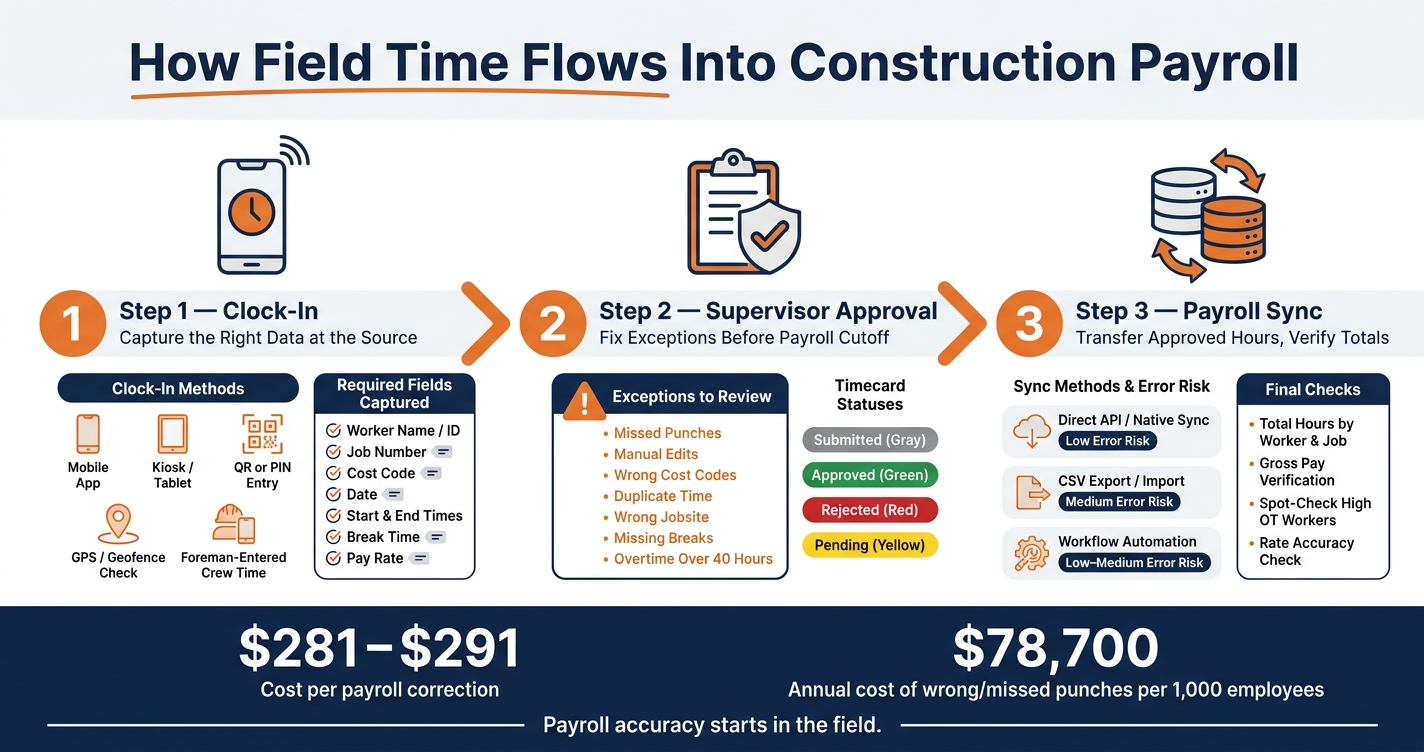
Construction Time Tracking to Payroll: 3-Step Workflow
Managing Time Tracking Settings in ConstructionOnline
sbb-itb-aa28329
Set Up Mobile Timecards and Clock-In Methods
When time gets recorded the right way at punch-in, payroll has far less cleanup to do before cutoff. That matters more than people think. If the clock-in method collects the fields payroll needs from the start, approved timecards can move into review, break handling, overtime checks, and payroll sync with a lot less friction.
Pick the Right Clock-In Method for Each Job Site
Pick the clock-in method based on the site layout and the mix of workers on the crew.
| Clock-In Method | What It Captures | Best Fit | Payroll Impact |
|---|---|---|---|
| Mobile app | Worker identity, timestamp, GPS location, job, cost code | Most crews with smartphones | High accuracy; real-time records |
| Kiosk / tablet at site | Worker ID (PIN, QR, NFC), timestamp, location | Fixed entry points, shared crews | Consistent capture; reduces missed punches |
| QR or PIN entry | Worker identity, timestamp | Fast check-ins at trailers or gates | Quick to deploy; works best with a location check |
| GPS or geofence checks | Location confirmation at clock-in/out | Dispersed or multi-site crews | Adds payroll trust; flags off-site entries |
| Foreman-entered crew time | Crew time, job, and task details entered by foreman | Remote sites, workers without phones | Requires stronger approval rules to prevent errors |
A simple rule helps here: fit the method to the site, not the other way around. A crew with smartphones may do fine with a mobile app. A site with one main entrance may work better with a kiosk or tablet. If workers move across scattered locations, GPS or geofence checks can help confirm where punches happen.
Whatever method you choose, set a backup process for offline punches or supervisor-entered time. Offline punches should sync once service comes back. And for shared devices, assign one owner to sort out missed entries before cutoff. If nobody owns that step, small punch problems can pile up fast.
After the punch method is in place, make sure the system collects the fields payroll needs.
Require Job, Cost Code, and Location at Clock-In
To stop hours from landing on the wrong job or cost code, require job, cost code, and location before the punch saves. Put plainly: payroll starts cleaner when coding happens at punch-in, not later during review.
Only show active jobs and approved cost codes. That keeps workers from picking old or wrong options by mistake. For crews moving between clients or sites, require a separate entry for each project. It takes a little more effort in the moment, but it prevents messy rework later.
Location checks should flag exceptions without blocking the punch. That way, supervisors still get a full record to review before approval instead of dealing with missing time and guesswork.
Review Timecards for Approval, Breaks, and Overtime
Next, supervisors verify timecards, fix exceptions, and approve hours before the payroll cutoff. This step clears timecards for break and overtime checks.
Approve Hours and Fix Exceptions Before Payroll Cutoff
Foremen review timecards each day, and project managers do a weekly sweep before cutoff.
Each timecard should show a clear status: submitted, approved, rejected, or pending. That makes life easier for payroll teams. They can filter for approved records only when exporting instead of hunting down loose ends by hand.
Before approving, supervisors should look for five common exception types:
- Missed punches: Confirm missing in/out times and add a correction note.
- Edited time: Keep a reason code and edit history for every manual change.
- Wrong cost codes: Recode hours to match the work that was actually done.
- Duplicate entries: Merge or delete overlapping time for the same worker.
- Wrong site: Move hours to the right job or location.
Once the review is done, lock the pay period. After cutoff, only payroll admins should make adjustments, and those changes need documentation.
Track Breaks and Apply Overtime Rules Correctly
Break and overtime rules affect both pay and compliance, so they need a check before approval.
Short rest breaks of 5–20 minutes count as paid work time and must be included when figuring overtime. Longer meal periods – usually 30 minutes or more when the worker is fully off duty – are generally unpaid, but only when they’re documented the right way. State break rules differ, so the system should be set up for each state where crews work.
The FLSA requires time-and-a-half after 40 hours in a workweek for nonexempt workers. Project, union, and state rules may also add daily overtime, double time, or premium pay.
Use the table below as a quick reference when reviewing timecards before payroll sync:
| Hour Type | Definition | Key Checks Before Sync |
|---|---|---|
| Regular hours | Hours within the standard workweek | Correct job, cost code, and location; required breaks recorded |
| Overtime hours | Hours over 40/week or the applicable daily threshold | Weekly and daily totals verified; hours above thresholds marked as OT and mapped to the correct earning code |
| Premium hours | Double time, weekend/holiday pay, or shift differentials | Project and union rules checked; premium flags and rates applied to qualifying hours |
| Break handling | Paid breaks stay paid; unpaid meals are deducted | Breaks logged per policy and applicable state law |
Before approval, flag timecards with over-40 hours, missing breaks, or shifts longer than 12 hours. Once those checks are done, the approved hours are ready for payroll sync.
Sync Approved Hours Into Payroll
Once approvals are done and the pay period is locked, it’s time to move approved hours into payroll. Approval closes the field record. Payroll sync starts the pay record. That means the job, cost code, break, and overtime selections made at clock-in now flow into payroll records.
Map Time Data to Payroll Fields
Before you run any sync, every field in your time tracking system needs a clear destination in payroll.
At a minimum, that means matching:
- Employee IDs to master payroll records
- Pay types like hourly, shift differential, and per diem to the right earning codes
- Regular, overtime, and double-time hours to separate payroll buckets
Job codes and cost codes also need to land in payroll’s project and cost center fields. That way, hours support job costing and certified payroll reporting, not just paychecks. Department or crew codes should roll up the right way for union local reporting or foreman-level cost tracking.
Date formatting matters too. U.S. payroll systems expect MM/DD/YYYY. If that format is off, hours can slip into the wrong pay period or hit a closed period.
Leave tax setup, deductions, and wage rules to payroll. Payroll applies the rates after import. With ABLEMKR, worker profiles, certifications, and jobsite data can feed the same mapping rules across projects.
When every field has a destination, the export or API sync can run without extra cleanup.
Run the Payroll Sync and Check Totals
Once the mapping is set, the sync step becomes a transfer-and-check process. Lock the period, run one last exception check before sync, and catch any remaining sync errors. Then export or push approved records into payroll.
After sync, compare total hours and gross pay by worker and by job across both systems before payroll goes out. It’s also smart to spot-check workers with high overtime or shift differentials, since those records are more likely to carry the wrong rates. Check gross pay per hour too. That’s one of the fastest ways to catch an obvious rate issue.
There are three practical ways to move approved hours into payroll, and each comes with its own trade-offs:
| Sync Method | Setup Effort | Error Risk | Best Fit |
|---|---|---|---|
| Direct API / native sync | High (one-time) | Low | Mid- to large contractors; staffing firms with high worker volume across multiple clients |
| CSV export / import | Moderate | Medium | Smaller contractors moving off paper; teams working with multiple payroll vendors |
| Workflow automation | Moderate–High | Low–Medium | Teams that want automated notifications, period locks, and queued syncs with a final review step |
Run clean records on schedule, and pull exceptions out for correction.
Conclusion: Build a Reliable Time-to-Payroll Workflow
Once timecards are approved and mapped, the last job is keeping payroll clean. A steady time-to-payroll workflow puts field capture, approval, break handling, overtime review, and payroll sync into one clear sequence. Miss one step, and cleanup can snowball fast.
Payroll mistakes cost money. Each payroll correction costs $281 to $291, and missing or wrong punches cost about $78,700 per 1,000 employees each year. A structured capture-verify-approve-sync workflow cuts down on those fixes.
That pays off on both sides. Employers get tighter labor cost control, fewer off-cycle runs, and cleaner job costing. Workers get accurate hours and on-time pay.
ABLEMKR supports that workflow by keeping field data, approvals, and payroll records connected. Worker profiles, certifications, jobsite data, and approved payroll records stay linked, so field time can move into payroll without re-entry.
The main point is simple: payroll accuracy starts in the field. If you get capture and approval right, payroll sync becomes a transfer, not a repair job.
FAQs
How do approved timecards reduce payroll errors?
Approved timecards cut payroll mistakes by taking manual data entry out of the process. That matters because hand-entered payroll data often leads to transcription errors, misread handwriting, and bad calculations.
When supervisors approve digital timecards, they’re checking the details before anything moves into payroll. That includes hours worked, project codes, and overtime. As a result, pay rates and compliance rules are applied more consistently, and discrepancies can be caught before they show up on paychecks.
What timecard issues should I fix before payroll sync?
Before syncing timecards to payroll, check for common issues like missed clock-ins or clock-outs, duplicate entries, wrong cost codes, and unusual overtime.
Also make sure offline sync data is complete, GPS problems are fixed, and every entry is complete, compliant, and approved by a supervisor. That extra review can help prevent wage errors and billing disputes.
How do cost codes affect construction payroll?
Cost codes decide how each worker’s hours are sorted and billed. So payroll does more than add up time. It also assigns labor to the right task or project phase.
When workers switch job codes at clock-in and supervisors approve entries digitally, approved hours move straight into job costing and labor cost reports. That means overtime and break calculations can be tied to the right cost categories, which improves accuracy and cuts down on manual reconciliation.


