
If a worker’s card is expired, the app should stop the job match before dispatch. That’s the whole point. I’d sum it up this way: the system stores each credential as a record with a type, dates, proof file, and review status; it checks that record before matching; and it sends reminders at set points like 30, 14, and 7 days before the expiration date.
If I were explaining it in plain English, I’d say the workflow is simple:
- Workers upload a card or certificate and enter the dates
- Managers review the file and either approve it, reject it, or send it back
- The app monitors the expiration date and changes status as time passes
- Expired records block matching, assignment, and check-in
- Renewed records restore dispatch status after approval
- Every action is logged with the user, date, time, and reason
That matters because one expired OSHA card, CDL, or trade license can lead to site denial, schedule gaps, delays, and extra cost. In fields like construction, utilities, and oil and gas, that check needs to happen before someone gets sent out.
What I like about this process is that it treats credentials as live compliance records, not just saved images. <u>No current date + no approval = no match.</u> That one rule does most of the work.
A short version of the flow looks like this:
| Stage | What happens | Result |
|---|---|---|
| Upload | Worker submits proof and dates | Record enters pending review |
| Review | Manager checks name, issuer, dates, and document | Status becomes approved, rejected, or correction needed |
| Monitoring | System checks expiration dates on a schedule | Alerts go out before the due date |
| Blocking | Expired status is checked against job rules | Worker is kept out of dispatch |
| Renewal | Worker uploads a new document to the same record | Eligibility returns after approval |
So if you want the short answer, here it is: staffing apps flag expired credentials by tracking expiration dates and approval status, then using those fields to send alerts and block bad matches automatically. The rest of the article explains how that works from upload to renewal.
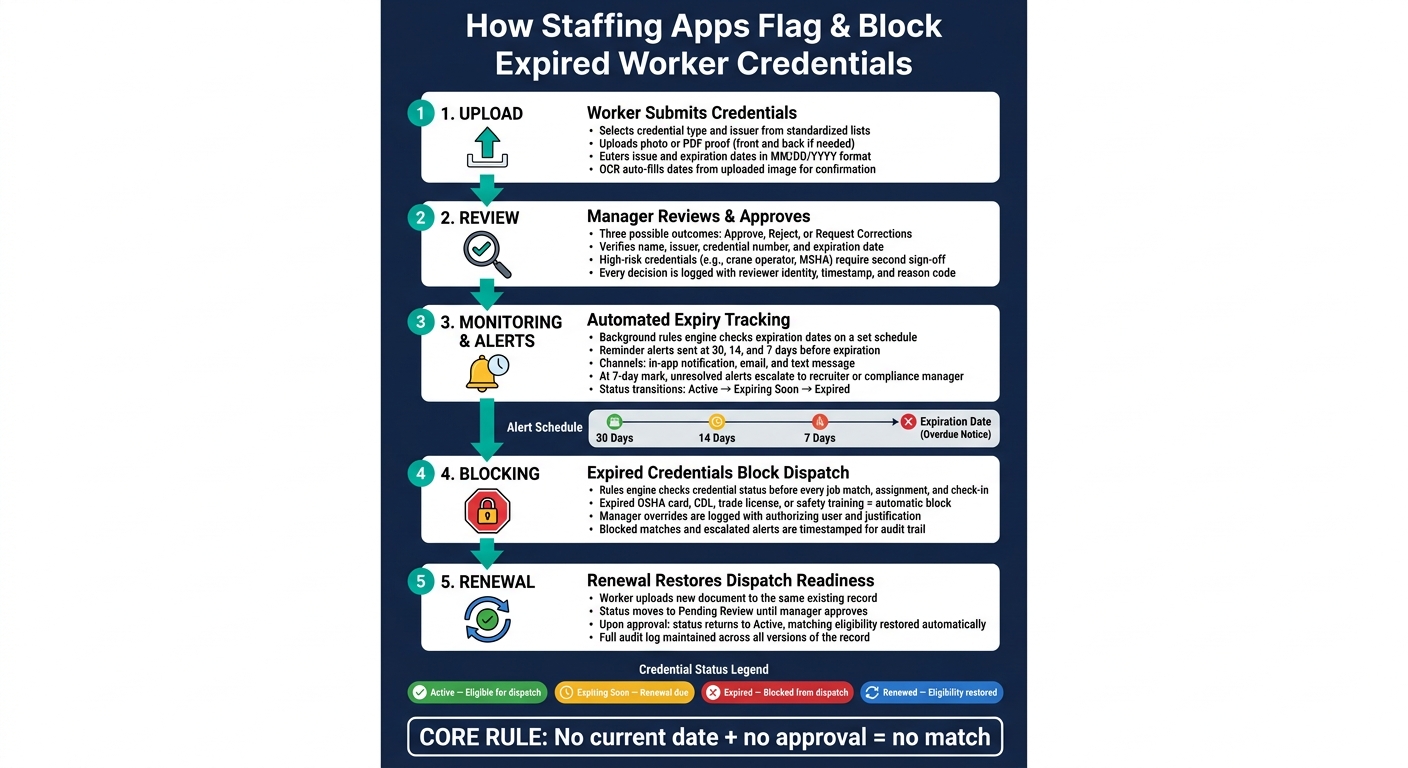
How Staffing Apps Flag & Block Expired Worker Credentials
How To Efficiently Track Employee Certifications: A Comprehensive Guide | Expiration Reminders
sbb-itb-aa28329
Step 1: Credential intake and worker-side upload
Credential intake starts with a fixed upload flow. The worker opens the app, goes to Credentials or Qualifications, and taps Add new credential. From there, the app follows the same path every time: pick the credential type, choose the issuer, upload proof, and enter the dates before sending it in for review. Clean uploads here matter because they feed the expiry alerts and match blocks that happen later.
How workers upload proof and enter dates correctly
It starts with a standardized credential type. The worker selects the credential type from a set list, then chooses the issuer from a searchable list. Those dates become the source of truth for later expiry checks and dispatch blocking.
Next comes proof upload. Workers can take a photo of a physical card right in the app or attach a PDF for online training certificates. If the card has details on both sides, they need to upload front-and-back photos. The most common reasons a submission gets sent back are blurry photos, cropped cards that cut off the expiration date, and PDFs that are password-protected or hard to read. A clear, full-frame image saves time and cuts down on reupload requests.
Date entry uses MM/DD/YYYY format, and calendar pickers help workers avoid format mistakes. Before submission, the system rejects blank, past-due, or illogical dates. If a credential has no expiration, the No expiration checkbox stops workers from entering a filler date that could set off false alerts later.
OCR can read dates and credential numbers from the uploaded image and prefill those fields for the worker to confirm. That cuts manual keying mistakes and helps move the review queue along. Once the details look right, the worker taps Submit for review, and the record moves to pending status.
How mobile-first upload supports field hiring
In construction, oil & gas, and mining, hiring often happens in the field, not behind a desk. A worker might get called for a pipeline repair or a last-minute shutdown and need to send credentials on the spot. Mobile-first upload makes that possible. Workers can capture and submit documents between shifts, and the record enters the system right away.
ABLEMKR‘s mobile-first upload lets field workers submit credentials from the job site and keeps records moving into review right away. After upload, the record goes straight into manager review and audit logging. That pending status leads into the manager approval step next.
Step 2: Manager review, approval, and audit trail
After upload, review is the checkpoint that turns a worker-submitted file into a trusted credential record. Reviewers compare the submission against the uploaded document and verify the key details: name, issuer, credential number, and expiration date.
If something doesn’t line up, the reviewer either rejects the record or sends it back for fixes. A side-by-side view helps spot cut-off cards, cropped images, and bad dates fast. For higher-risk credentials like crane operator certifications, confined space permits, or MSHA cards, some platforms require a second sign-off from a senior compliance manager before the record can clear. Those checks decide whether the credential becomes active, goes back for correction, or gets rejected.
Approve, reject, or request corrections
Each submission ends in one of three outcomes, and that decision should be recorded before the status changes.
| Outcome | When to use it | What happens next |
|---|---|---|
| Approve | Name, issuer, dates, and credential number all match the uploaded document | Credential becomes active. |
| Reject | The credential is expired, invalid, or cannot be verified | Worker stays out of matching for that requirement. |
| Request corrections | The credential is valid, but the submission has errors – wrong date, cut-off image, or bad issuer data | Worker resubmits corrected proof. |
There’s a simple rule here: expired credentials are rejected, while valid credentials with bad data go back for correction. That gate keeps expired or unverified credentials out of shift assignments.
The audit trail is what holds the whole process together. Every action – upload, edit, approval, rejection, or correction request – is logged automatically with the reviewer’s identity, role, exact timestamp, such as 08/14/2026, 3:42 PM CT, the decision made, and the reason code tied to it. The log is tamper-evident, so nobody can quietly rewrite an earlier decision.
If a compliance officer or OSHA inspector asks why a worker was cleared for a high-risk site, the record gives a direct answer: who approved it, when, and based on which document version. The audit trail records who approved each credential, when, and why. That history also helps with later renewal checks and compliance reviews.
Once approved, records move into matching and dispatch checks. From there, they enter expiry monitoring, where the app starts tracking renewal dates and sending alerts.
Step 3: Expiry detection, alerts, and match blocking
Once a reviewer approves a record, the app starts monitoring it for renewal risk. From that point on, the platform tracks each credential against its expiration date. A background rules engine updates status on a set schedule, or when someone opens or edits the record. As the expiration date gets closer, the credential moves from Active to Expiring Soon. Then, at midnight on the expiration date, it switches to Expired, which changes assignment eligibility automatically.
| Status | What it means | Dispatch impact |
|---|---|---|
| Active | Credential is valid and verified | Eligible for matching |
| Expiring Soon | Valid but nearing expiration | Eligible, but renewal is due |
| Expired | Past expiration date | Blocked from matching and dispatch |
| Renewed | New document submitted and approved | Eligibility restored |
How automated reminders and escalations work
Reminder timing depends on the credential type. A common setup is 30, 14, and 7 days before expiry, plus an overdue notice on the expiration date. That matters because not every credential works on the same timeline. An OSHA refresher, CDL renewal, and trade license may each need a different reminder schedule.
Alerts are sent through in-app notifications, email, and text message. That way, workers and internal teams can see them whether they’re on-site, in transit, or between shifts. If the worker still hasn’t uploaded a renewed document by the 7-day mark, the system escalates the alert to a recruiter, compliance manager, or site supervisor. In plain English, that gives the team a chance to step in before a shift gets offered.
How expired credentials block matches and shifts
When the renewal window closes, the same status check also controls assignment. Before a job is confirmed, assigned, or checked in, the rules engine compares the role’s required credentials with the worker’s current status. If the job calls for an active OSHA card, CDL, trade license, or site-specific safety training, an expired credential blocks the match and stops the assignment.
For ABLEMKR, automated blocking helps crews move fast while keeping expired credentials out of high-risk deployments.
The system also logs every status change, blocked match, and escalated alert with a timestamp and rule trigger. If a manager overrides a block for emergency work, the system records the exception, the authorizing user, and the justification for OSHA or client review.
Step 4: Renewal updates and restoring dispatch readiness
When a credential gets blocked, the worker renews it from the same record. They open the expired record, upload the new document, and confirm the issue and expiration dates in MM/DD/YYYY format. If OCR pulls the dates in automatically, the worker still reviews them before submitting. After that, the status moves to Pending review until a manager finishes the review.
Date mistakes can hold things up. That’s why validation rules should reject impossible entries, like an expiration date that comes before the issue date.
How status changes after a renewed document is approved
Once the renewed document is approved, eligibility comes back automatically. When a manager approves it, the credential moves from Expired, Expiring Soon, or Pending review to Active. At the same time, matching eligibility updates too, so a worker who was blocked from an assignment becomes matchable again as soon as that approval is recorded.
ABLEMKR gives supervisors real-time visibility into who is dispatch-ready.
Conclusion: How this workflow prevents last-minute compliance failures
This closed loop stops expired credentials from slipping into the schedule. Automated reminders and escalations go out at 30, 14, and 7 days before expiration, which gives recruiters time to step in before a shift or dispatch falls through. Match rules apply the hard stop, and approved renewals remove that block automatically.
The result is simple: current credentials stay in place, expired workers stay blocked, and dispatch readiness comes back as soon as a renewal is approved. That helps keep dispatch-ready workers on the schedule and creates a clear record that checks were completed before any crew was dispatched.
FAQs
What happens if a worker uploads the wrong expiration date?
If a worker enters the wrong expiration date, the platform’s automated checks flag the mismatch during real-time validation. If the credential doesn’t match the uploaded records or internal data, the system escalates the issue and prompts the worker or the right team member to fix it.
Until the credential is confirmed as current and accurate, the worker is automatically blocked from job assignments or site access.
Can a manager override a block on an expired credential?
The documentation says the system automatically blocks assignments when a worker has a missing or expired credential. The goal is to support compliance and safety on high-risk job sites.
Based on the information provided, there’s no sign that a manager can manually override those blocks. If a worker is restricted, that restriction stays in place until their documentation is updated.
How quickly does dispatch eligibility return after renewal?
Dispatch eligibility usually returns as soon as the renewed certification is uploaded and verified in the system.
Because ABLEMKR updates compliance, scheduling, and payroll status in real time, the worker can become eligible for assignment without any extra admin delay once verification is complete.


